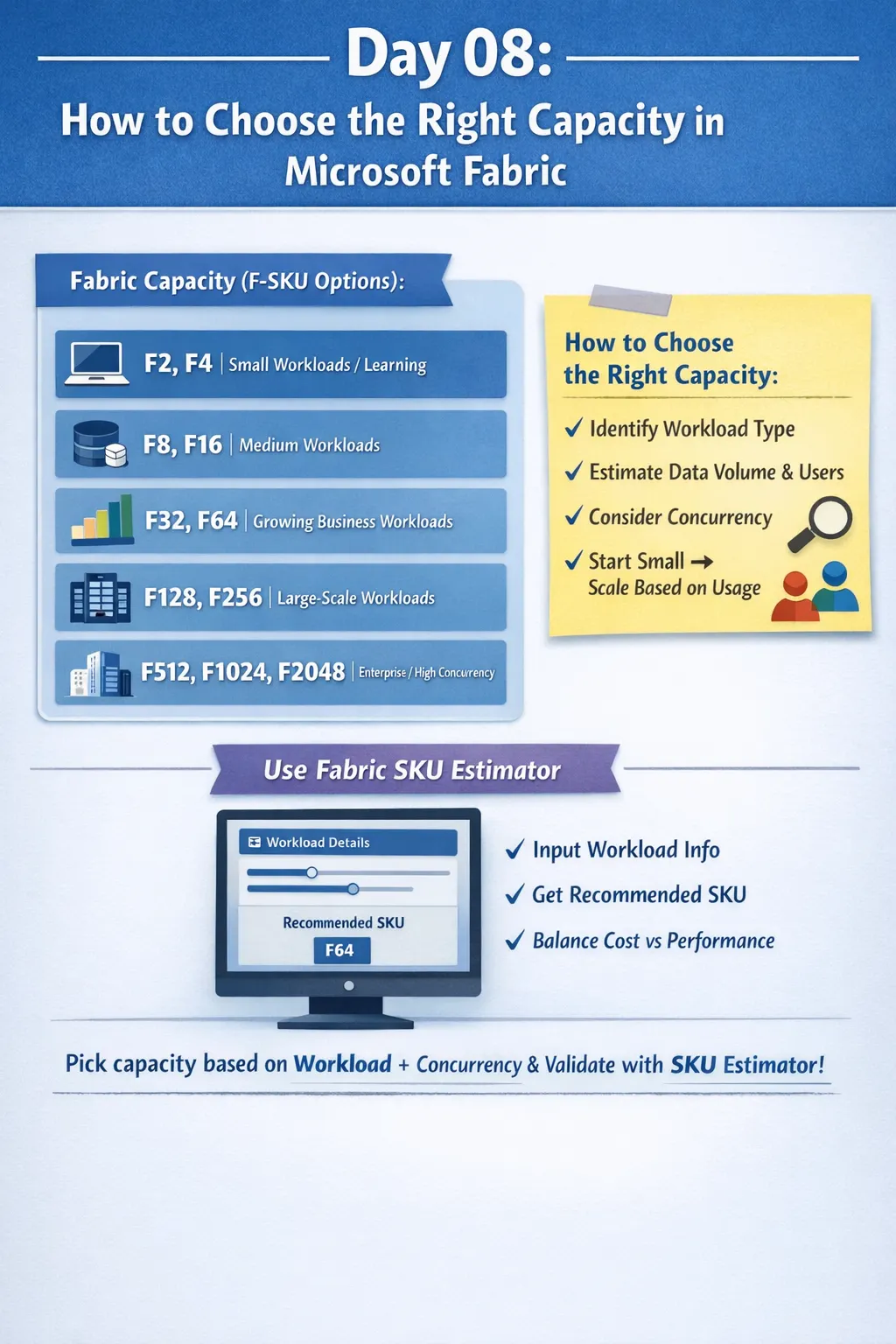
How to Choose the Right Capacity in Microsoft Fabric 🔴 Problem: Choosing the wrong capacity leads to cost or performance issues In Microsoft Fabric, capacity is the backbone of all workloads. Since Fabric uses a shared compute model, every operation — whether it’s a Power BI refresh, Spark job, or pipeline execution — consumes capacity units. If you choose a lower SKU, you may face throttling, slow performance, or failed workloads. On the other hand, choosing a higher SKU without need leads to unnecessary cost. 🟢 Understanding Fabric Capacity (F-SKUs) Fabric provides a range of SKUs (F2 → F2048), each representing a fixed amount of compute power. 📌 Capacity Breakdown: F2, F4 → Ideal for learning, demos, and small workloads F8, F16 → Suitable for small teams and moderate usage F32, F64 → Growing business workloads with moderate concurrency F128, F256 → Large-scale workloads with heavy data processing F512, F1024, F2048 → Enterprise-level, high concurrency environments These capacities are measured in Capacity Units (CUs), which are shared across all Fabric experiences. Write on Medium 💡 Key Factors to Choose the Right Capacity 1️⃣ Workload Type Different workloads consume capacity differently: Data Engineering (Spark, pipelines) → High compute usage Data Warehousing → Moderate to high depending on queries Power BI / Reporting → Depends on dataset size and refresh frequency Real-time analytics → Requires consistent performance 👉 If you are running mixed workloads, always consider a balanced or higher SKU. 2️⃣ Data Volume Small datasets (MBs–few GBs) → Lower SKUs work fine Medium datasets (10s–100s GBs) → Mid-level SKUs Large datasets (TB scale) → High SKUs required Data size directly impacts processing time, refresh cycles, and query performance. 3️⃣ Concurrency (Parallel Usage) Number of users accessing reports Number of pipelines running simultaneously Background jobs + scheduled refreshes 👉 Higher concurrency = higher CU requirement This is one of the most ignored but critical factors. 4️⃣ Performance Expectations Need fast dashboard load & refresh → Higher capacity Okay with batch processing delays → Moderate capacity 👉 Define SLAs (Service Level Agreements) before selecting SKU. ⚙️ Using Fabric SKU Estimator (Recommended Approach) Instead of guessing, Microsoft provides a Fabric Capacity Estimator tool: ✔ Input workload details (users, data size, refresh frequency) ✔ Get recommended SKU ✔ Compare cost vs performance 👉 This helps you make a data-driven decision before purchasing capacity. 📈 Best Practices for Capacity Planning Start with a lower SKU (pilot phase) Monitor usage via Capacity Metrics App Identify peak usage and bottlenecks Scale up or down based on real usage Optimize workloads before upgrading (query tuning, partitioning, etc.) Pause capacity when not in use to reduce cost 🎯 Key Takeaway Choosing the right capacity in Fabric is not about picking the biggest SKU — it’s about aligning workload type, data volume, concurrency, and performance needs. 👉 Start small, measure usage, and always validate your decision using the Fabric SKU Estimator for optimal cost and performance.
No comments yet.